Category: How TO

  • CorelDRAW Tips for Sublimation: How to achieve professional printing results and save time 

    Achieving vibrant, accurate sublimation prints relies heavily on how you prepare your design workspace. CorelDRAW is a powerful tool for this process, but the default settings are not fully optimized for sublimation when installed. 

    Minor adjustments to your layout habits, color settings, and workflow make a significant difference between a dull print and a crisp, professional product. 

    This guide outlines shortcuts, color management, and smart printing workarounds to maximize your efficiency and output quality in CorelDRAW. 

    Shortcut Keys 

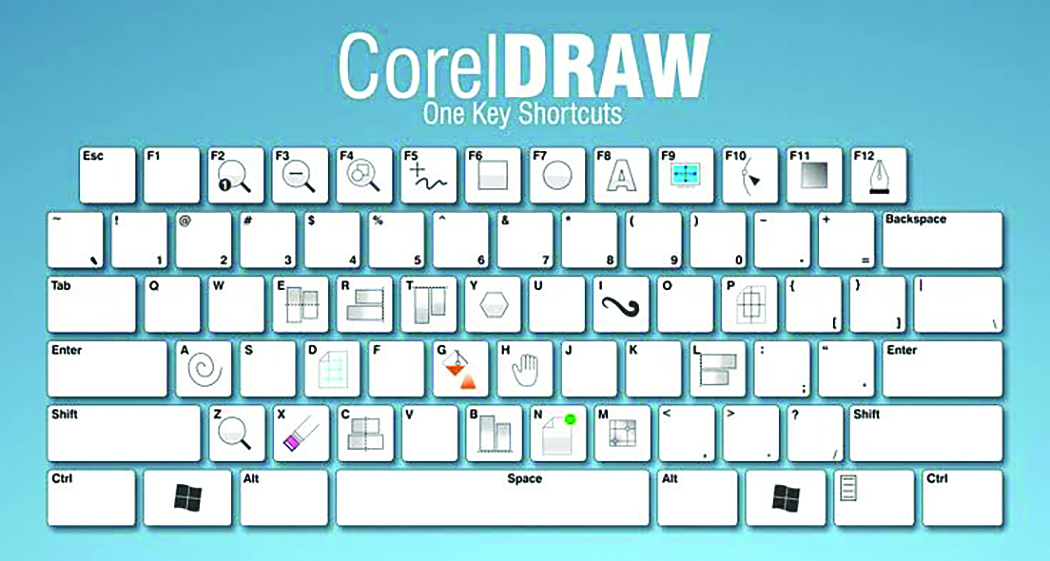
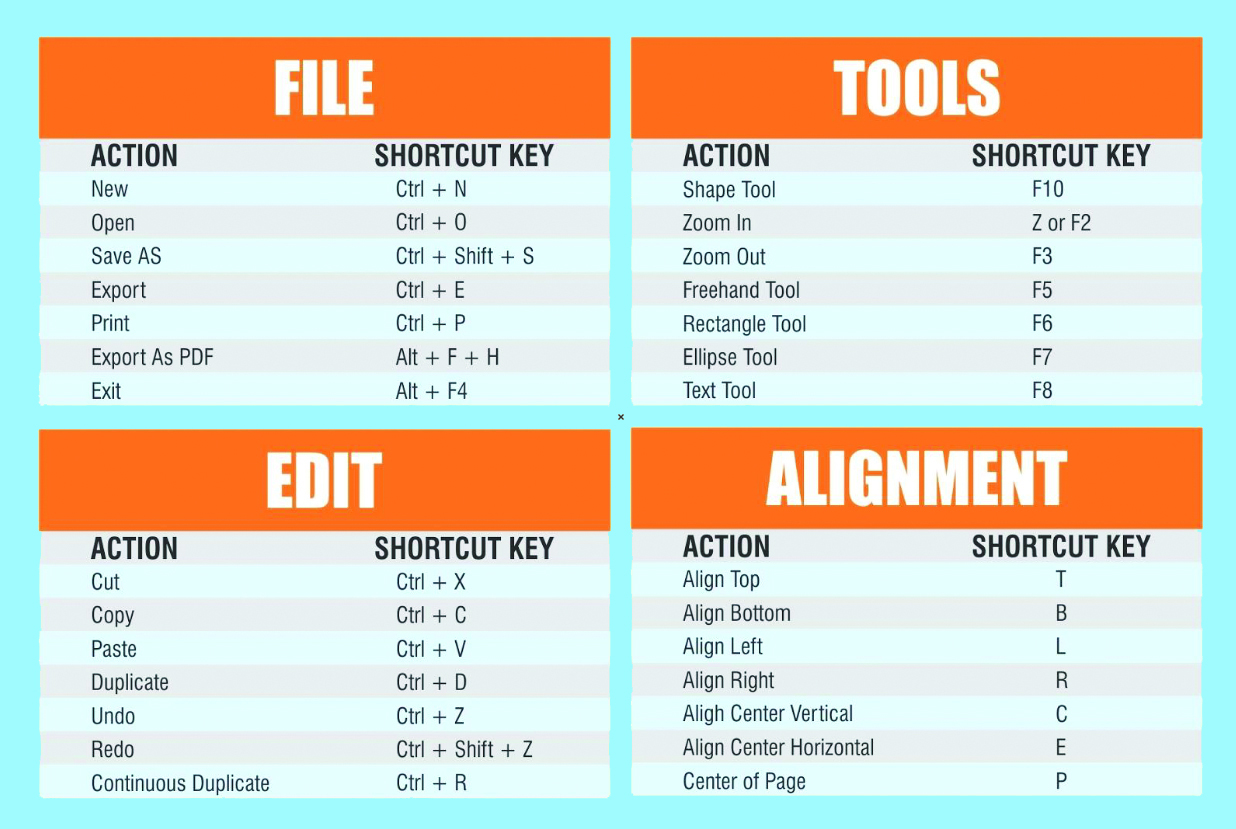
    Time Saved per Action: Studies have shown that selecting a tool on a sidebar menu or drop-down takes anywhere from two to five seconds. Using a hotkey can bring that time down to less than a second. This may not seem like much time, but overall, it could save you about 50 hours a year for average computer users. Familiarize yourself with some of the hotkeys shown in figures A and B to save you time during your daily routines.

    Essential Color Management 

    • RGB Workspace: CorelDRAW defaults to CMYK, but sublimation inks and standard printers process colors best in RGB. 

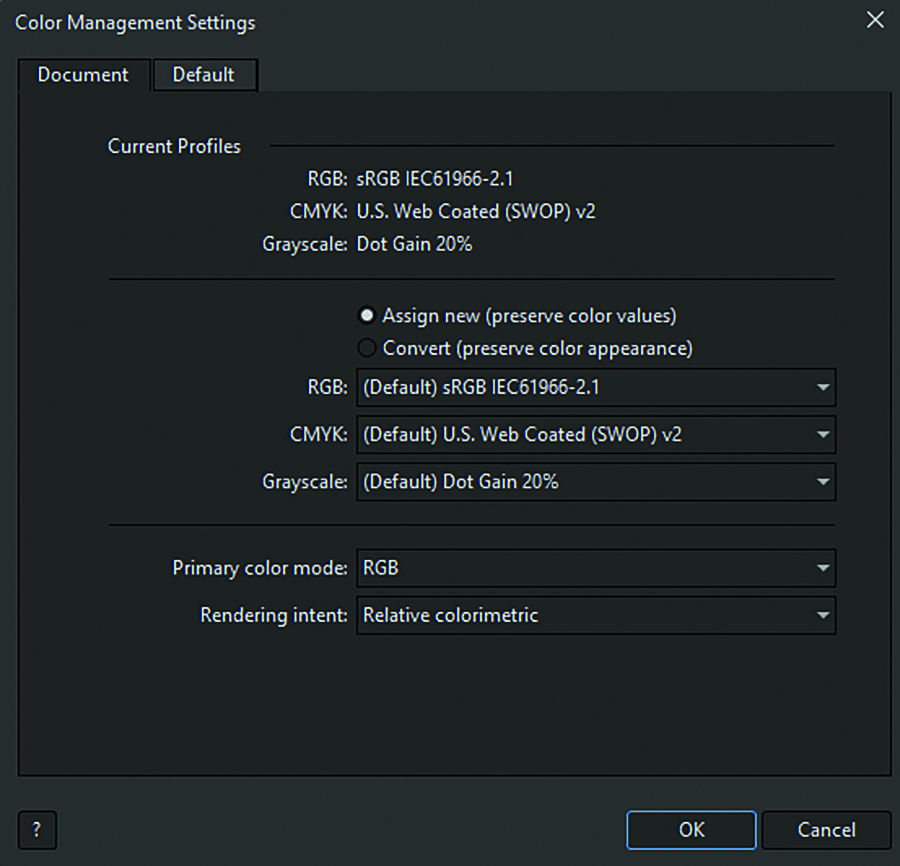
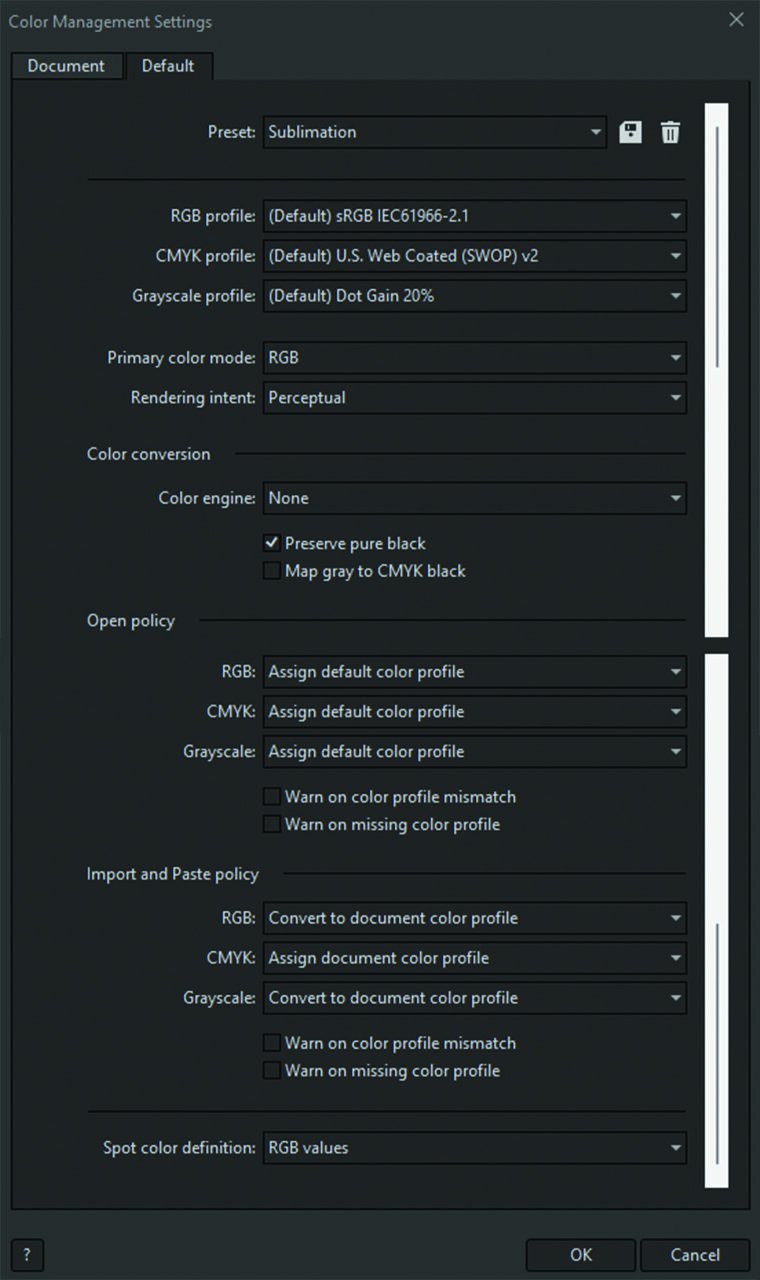
    Ensuring your program’s color management and documents are set to RGB will yield vibrant color output. 

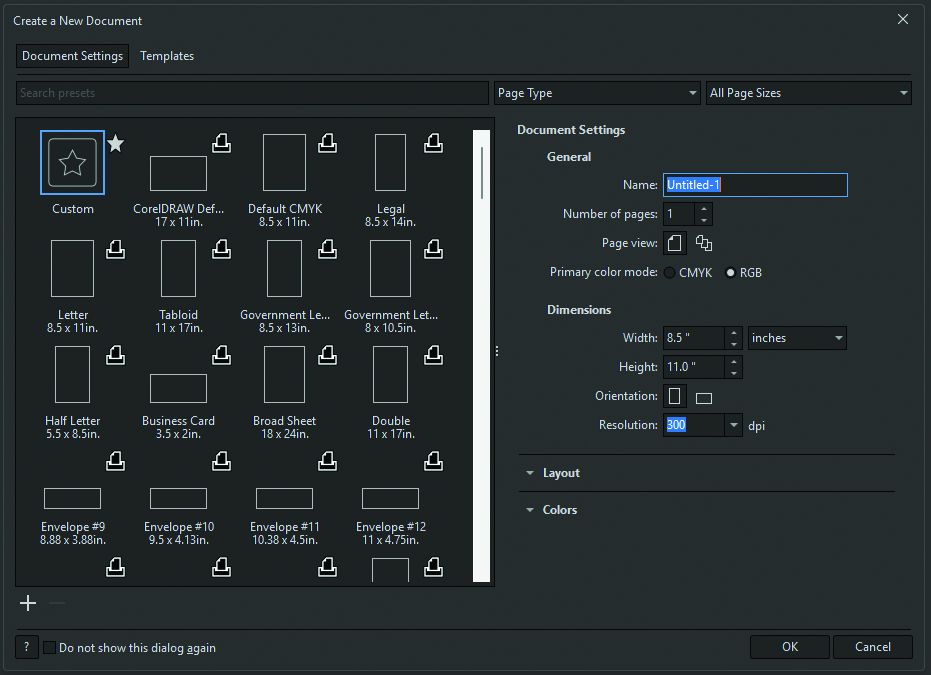
    To change these settings, go to Tools > Color Management (figures C and D). 

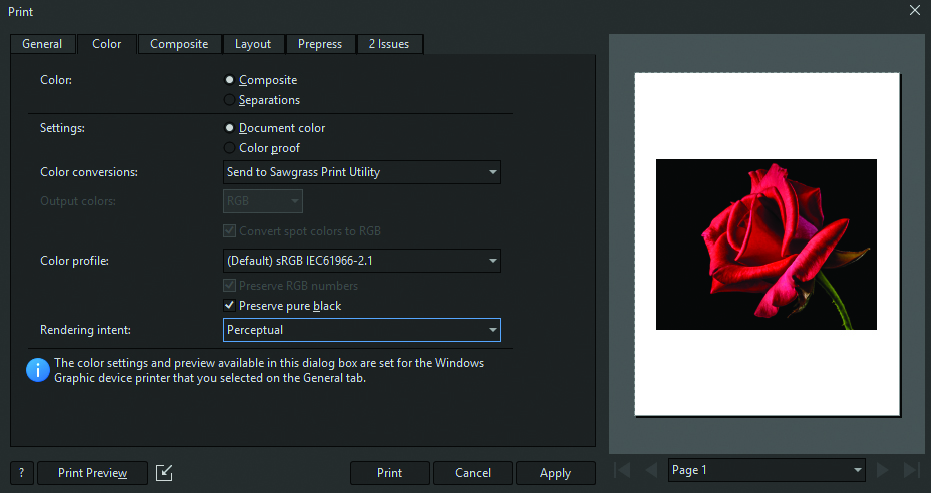
    • ICC profiles: ICC profiles are key to a constant, correct color output. ICC profiles typically come from the printer manufacturer or ink supplier (e.g., the Sawgrass Print Utility program or Epson Edge Print PRO).

    Change settings in File > Print > Color tab (figure E). 

    Smart Printing Work-Arounds 

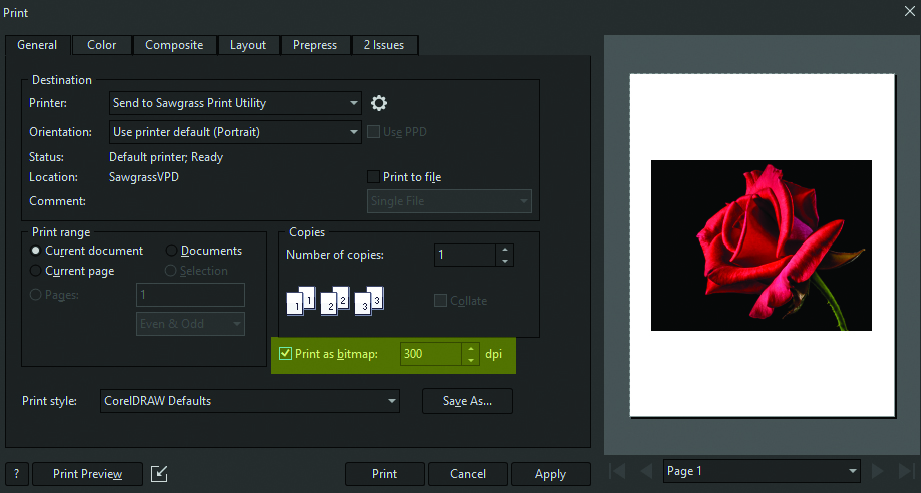
    • Print as Bitmap: If the software is running slowly or you are missing information in your design when it prints, convert your file using the bitmap features. 

    With this approach, you will be able to flatten your vector graphic into a bitmap format, which will make the program or print feature run more smoothly. To find this process, go to File > Print, select Print as Bitmap, and send it to your printer. 

    This method forces CorelDRAW to flatten your complex vectors for your printer (figure F).

    • Custom Page Sizes: Creating and saving custom page sizes to your presets enables you to quickly align multiple designs on a single sheet of sublimation paper. To set the page size, go to Layout > Page setup, then enable the Page Size option. From there, choose Custom size and manually enter width and height (figure G). 
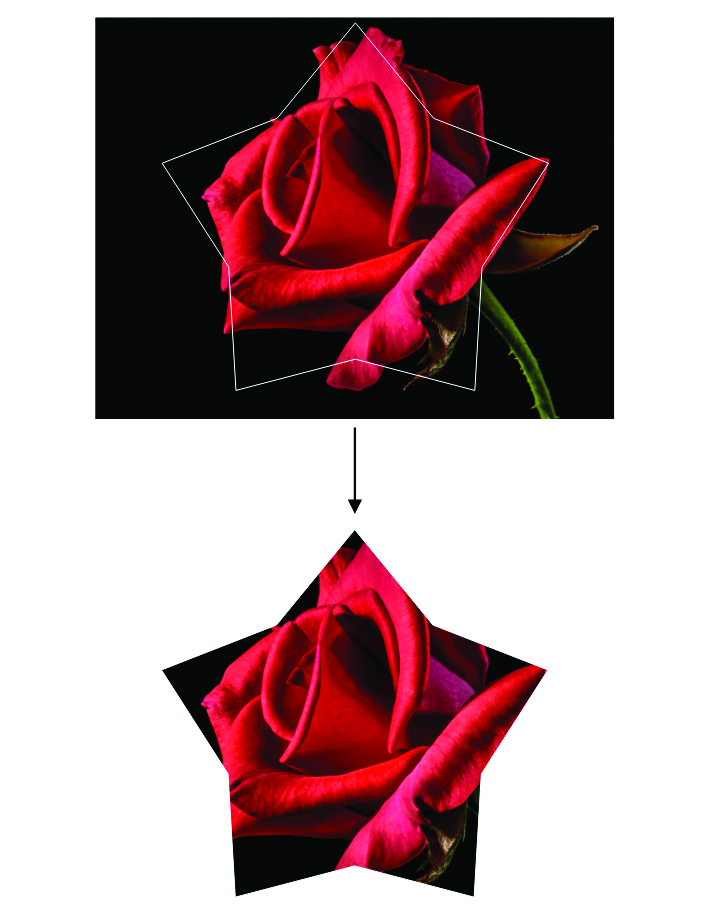
    • PowerClip: Use less ink with the PowerClip feature. This option lets you place bitmaps or vectors inside other objects. It is typically used for trimming artwork to a specific shape, placing photos into text, and creating complex layouts. 

    To use this feature, select your artwork and click Object > PowerClip > Place Inside Frame.

    Then, click within the shape where you would like the PowerClip placed (figure H). 

    Mastering these CorelDRAW tips will significantly reduce your production time and eliminate printing errors. By using shortcut keys and essential color management and leveraging printing workarounds, you enhance your time efficiency and protect both ink and supply materials from waste. 

    Implement these tips into your daily design workflow to ensure consistent, professional sublimation results every time.
  • Three Favorite AI  Tools in Photoshop

    Looking for a new read that may give you some tips for business and life? A few APA members share books that inspired. 

    By Shon Roti

    AI

     impacts nearly everything we consume and create, and there are no signs of it slowing down. Graphic design and design software are increasingly shaped by AI-driven tools. 

    My own resistance to using AI in daily design work has gradually faded as I have become more aware of its practical benefits and time-saving capabilities, while also coming to terms with my initial concerns about what it might mean for my relevance as a marketing professional.

    AI in Photoshop 

    Currently, there are more than 25 AI-powered features and tools in Adobe Photoshop, plus at least 20 machine-learning-assisted functions. Their purposes include adding or extending scenery; removing, adding, or selecting people or objects; retouching skin blemishes; restoring photos; and adjusting lighting, to name a few.

    Here’s a look at a few AI features I often use to save time. 

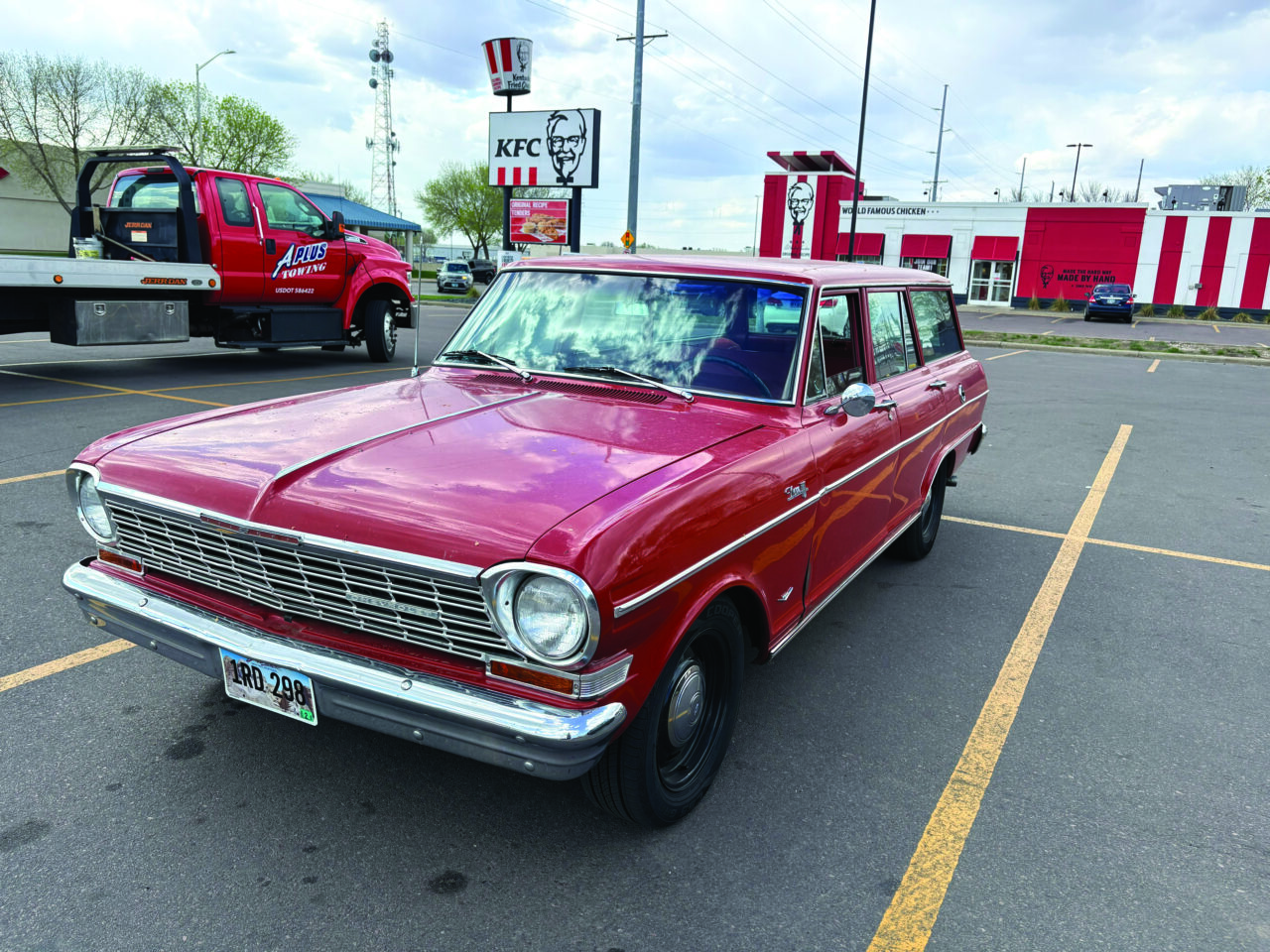
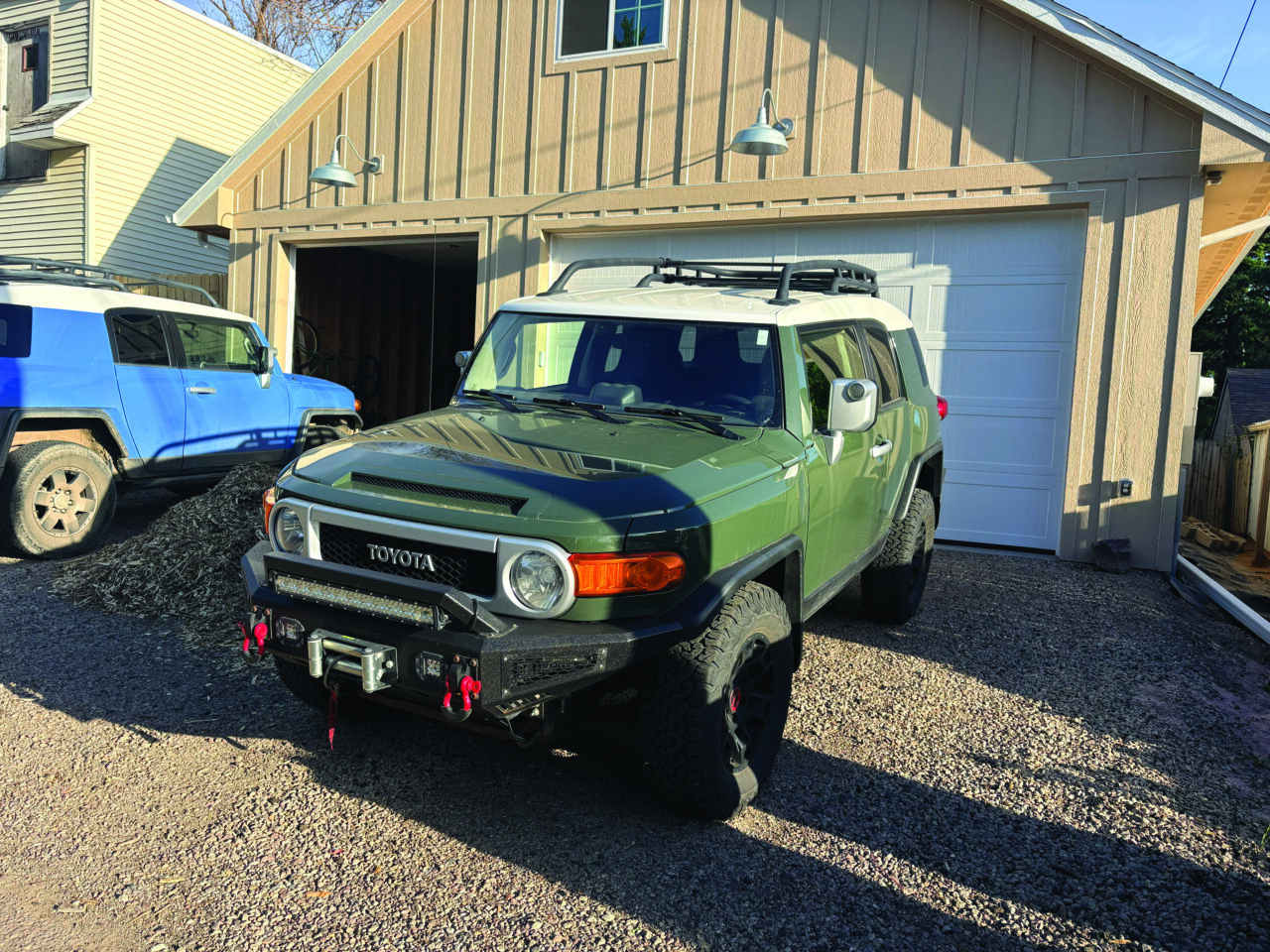
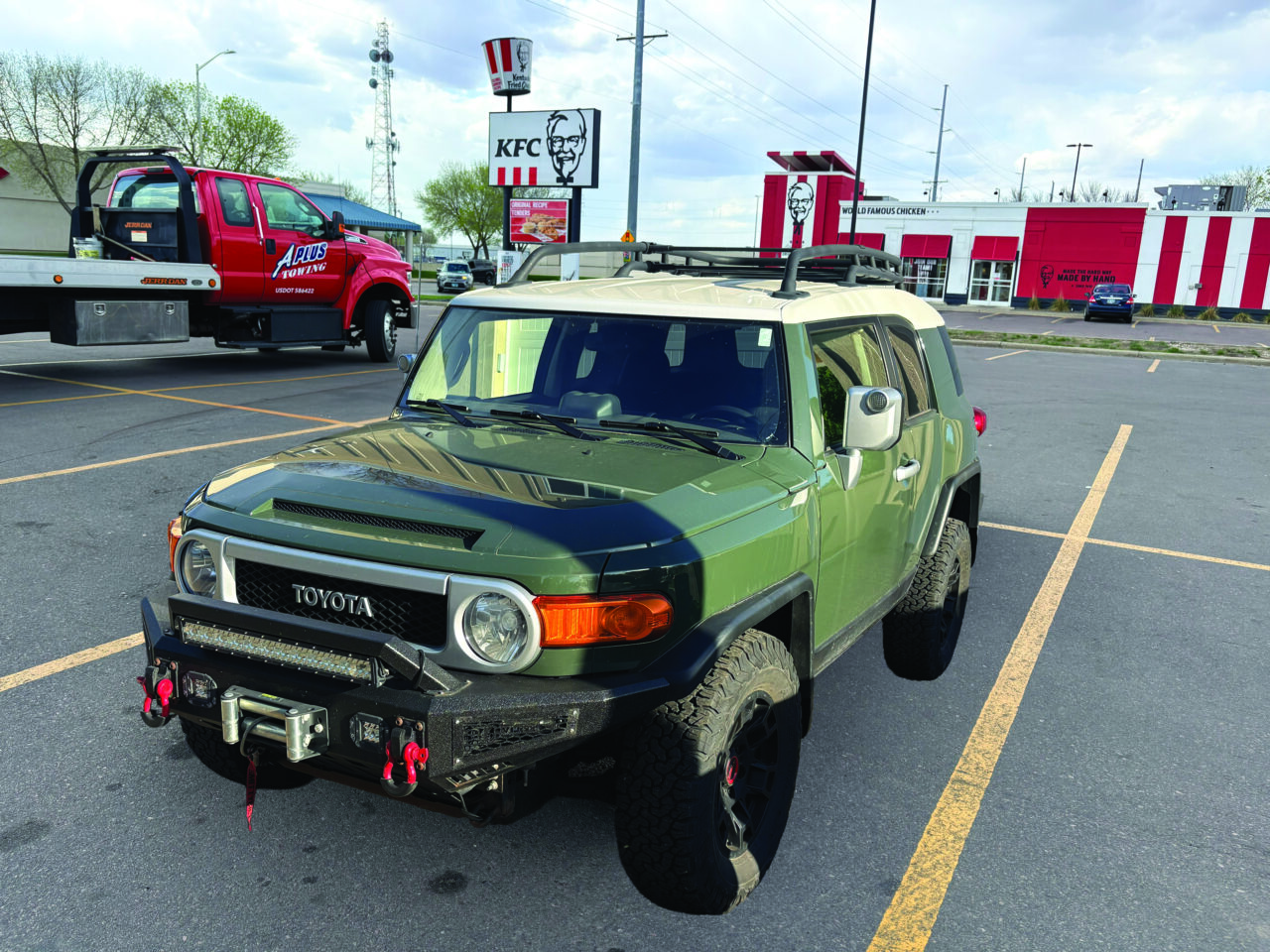
    Figures A and B: Two photos taken on different days with very different lighting situations: midafternoon and cloudy for the red Nova wagon and sunny late afternoon for my green FJ Cruiser. 

    Figure A

    Figure C: A composite created using three different AI tools and surprisingly few steps to complete this convincing effect.

    Figure B
    Figure C

    Select Subject and Generative Fill

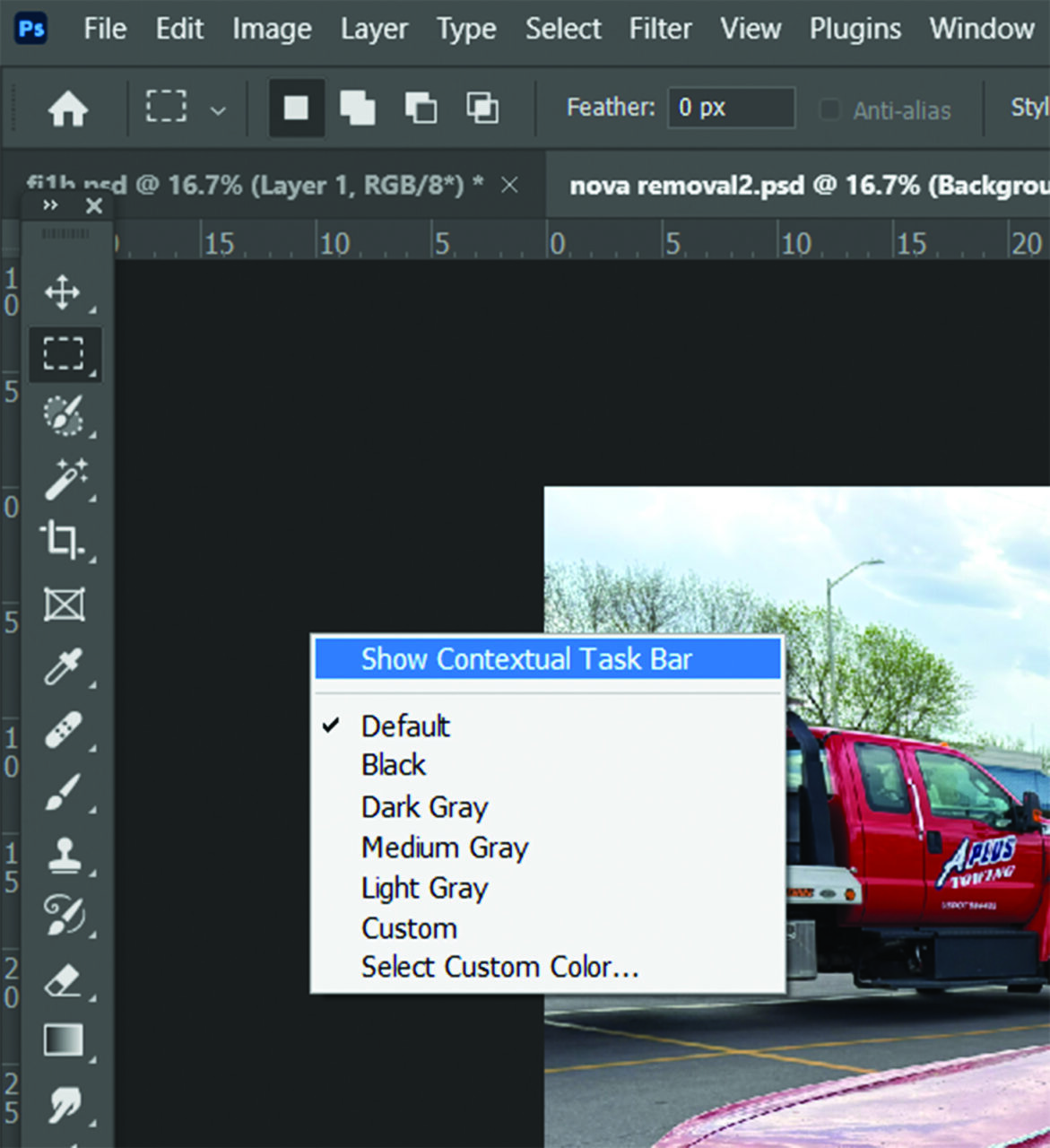
    Access the Select Subject option in the Contextual Task Bar by right-clicking in the empty workspace (not the image) and selecting Show Contextual Task Bar (figure D).

    Figure D

    To select the most prominent object in the photo, use Select Subject. Depending on the computer’s processing power, this could take as little as five seconds and often does a better job than I could have done manually with the Polygonal Lasso Tool.

    Next, in the same Contextual Task Bar, the Generative Fill option appears. I selected it. At that point, I could have chosen to fill the space with whatever I wanted: a fruit basket, twelve monkeys, or another random vehicle. But in this case, I entered the prompt, “Remove the car.” 

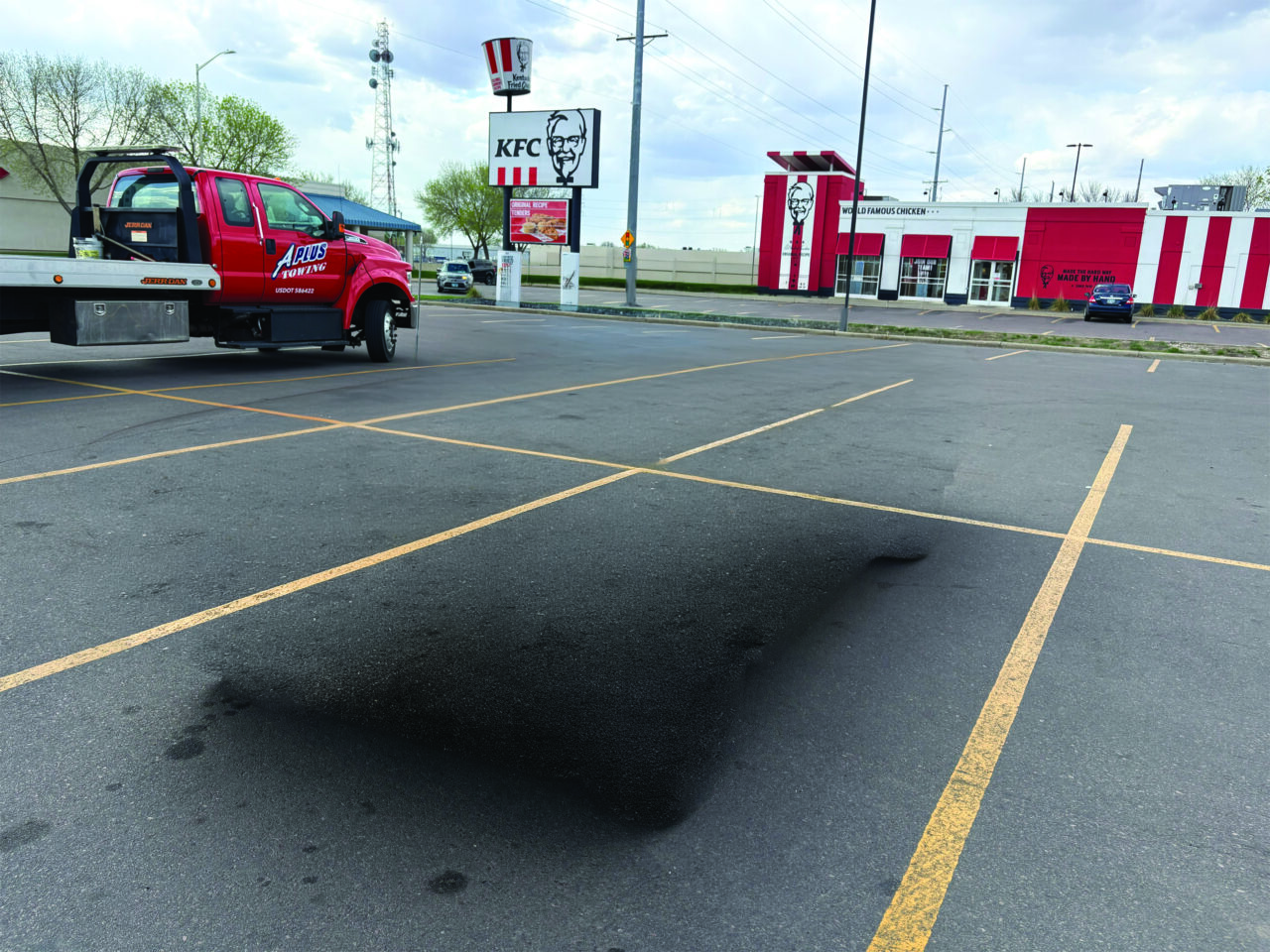
    Photoshop completed the task in seconds, leaving an empty space in the parking lot (figure E). It was not perfect; there was a bit of residual shadow left behind from the Nova, but it was still pretty impressive.

    Figure E

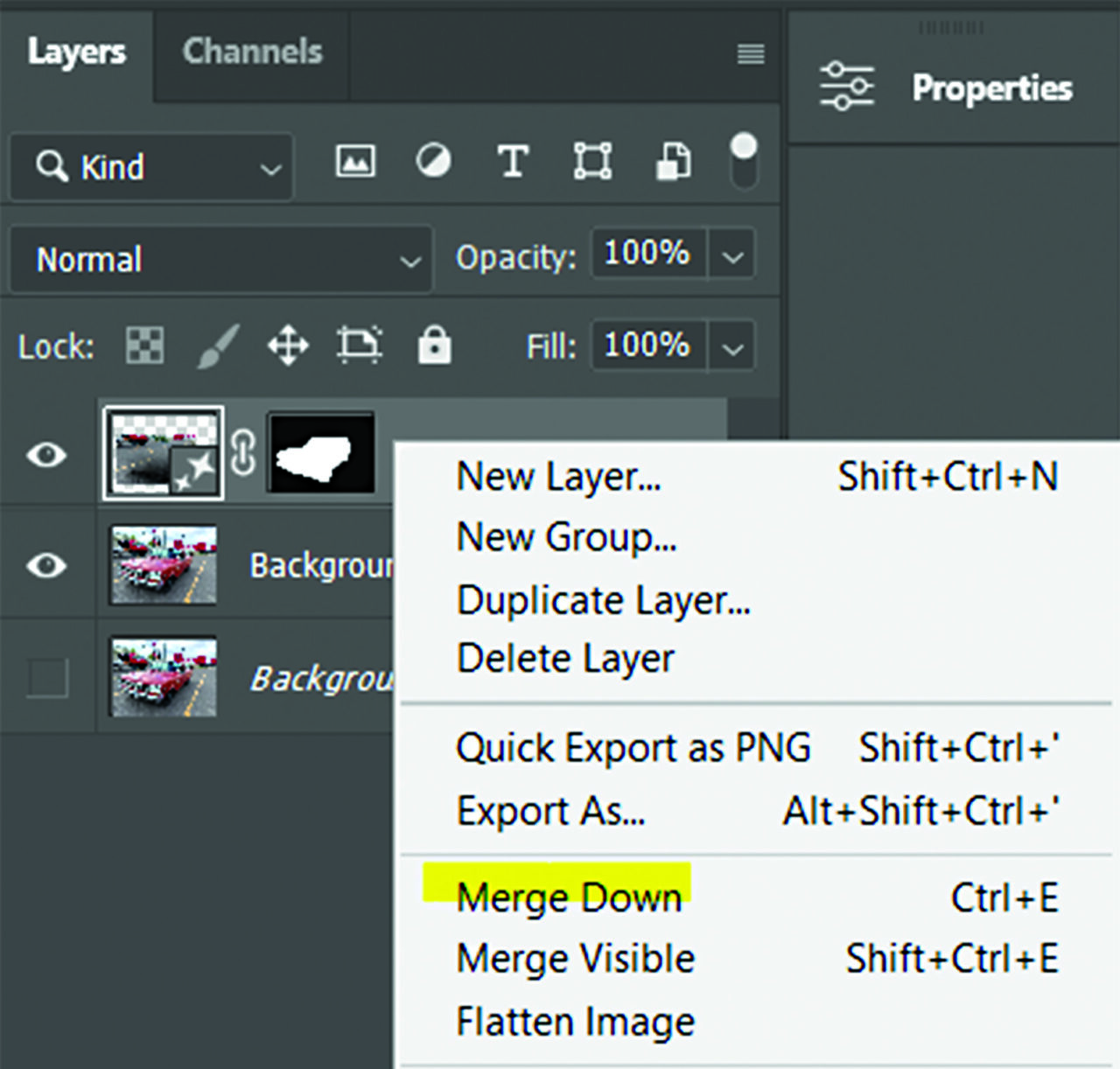
    I then right-clicked the newly created and merged empty-parking-lot layer and merged it down into the layer below (figure F).

    Figure F

    Next, I opened the photo of my FJ Cruiser, used the same AI selection option, copied it (Ctrl+C), and pasted it (Ctrl+V) into the parking lot file, above the layer containing the empty parking lot (figure G). The FJ and the background looked about as natural together as a fish on a bicycle. 

    Figure G

    Harmonize Layer

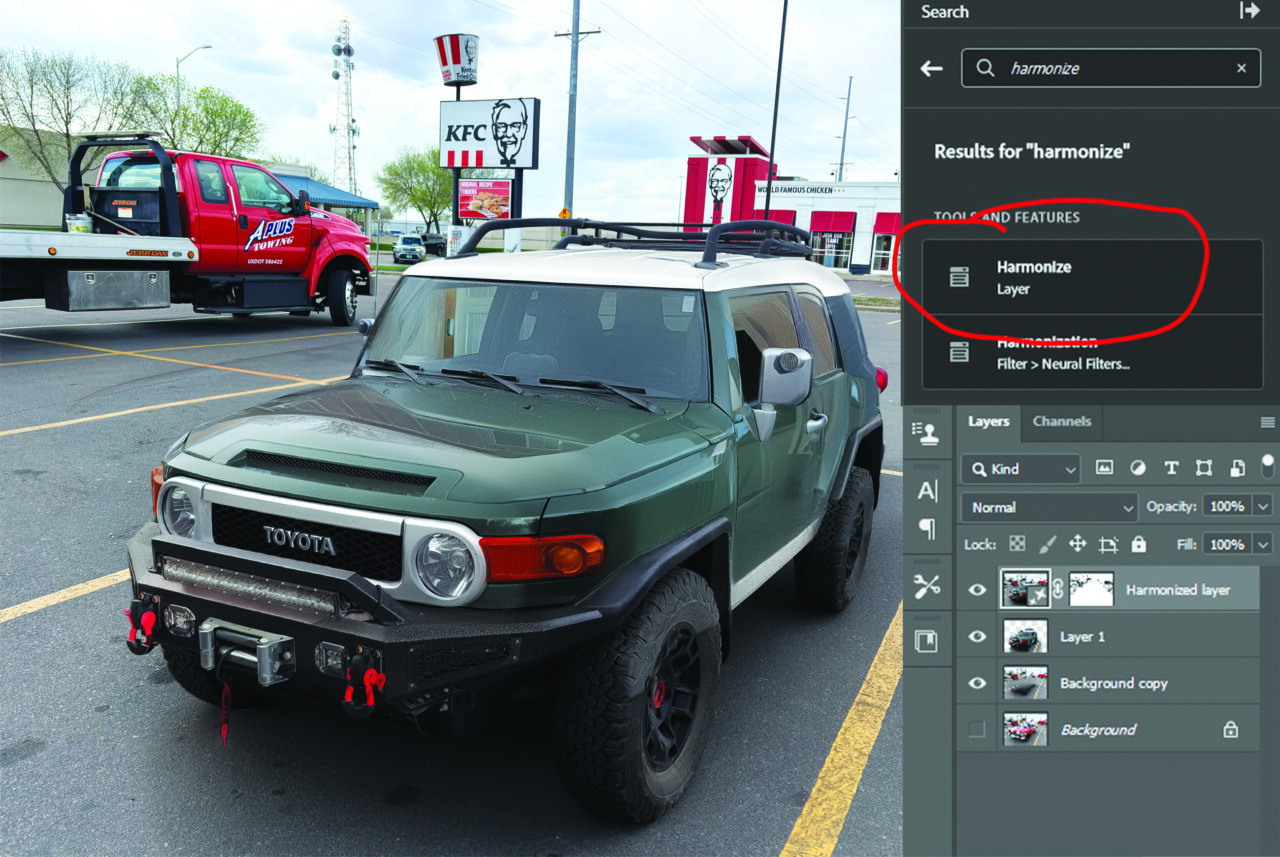
    You’ll locate this feature with the search bar in the upper-right corner of the workspace. Type “harmonize” into the search field, and the Harmonize Layer option should appear near the top of the results.

    After confirming I had selected the FJ Cruiser layer, I chose the Harmonize Layer option (figure H). This process took a bit longer, but it adjusted the lighting to match the cloudy conditions of the image below. However, it also created a new shadow under the FJ and partially removed the shadow from the hood. It also gave me two other renderings to choose from. I chose the first option. Then I merged that layer into the one beneath (the parking lot). I copied the new image, pasted it into a new document, and saved it; the illusion was complete.

    Figure H

    Of course, I would be remiss if I didn’t also show how these new AI features can be applied in a real-world situation, like the T-shirt design in figure I.

    As with most emerging technologies, some AI design tools will become more relevant than others, depending on the type of work or the project at hand.

    Full disclosure, AI was used to assist with definitions of these AI features, improve spelling and grammar, and generally polish my sentence structure. The photo of the lady in the white T-shirt was found on Pixabay.com and is an AI-generated image. However, the design and the article itself still come from human skills, honed over time.

    Figure I

    Like everything in life, there are few guarantees, but one of them is change. I am not ready for retirement yet, so I am adapting and learning at least until the robots take over. 

  • Putting the Tools to Work: Hotkeys and shortcuts for Lightburn

    Switching from one design software to another can be challenging when the tools, layout, and hot keys differ. If you’re using an all-in-one workflow like LightBurn and MillMage, there are a few key tricks to speeding up your processes.

    LightBurn (for lasers) and MillMage (for CNC routers) are made by the same people, so they’re already designed to work together within a single program from start to finish. If you’re working with both lasers and CNC routers, this setup is seamless because it uses the same tools, layout, and hotkeys.

    Here are some tips on speeding up and customizing your workflow in LightBurn, MillMage, or both.

    Quick-Selection Tools

    You can’t adjust an object unless you can select it, and you’ll also want to make sure you don’t accidentally grab anything nearby that you don’t want to change. Of course, clicking directly on individual objects is the most straightforward strategy, but it can be time-consuming.

    You’ll find several even faster options in the Edit Menu, including Select All (Ctrl+A/Cmd+A), Invert Selection (Ctrl+Shift+I/Cmd+Shift+I), Select Open Shapes, Select All Shapes in Current Layer, and more.

    The two box-selection options are also incredibly powerful. Click and drag left to right to create a green Crossing Selection box that selects everything it touches. Inversely, drag right to left to create a red Enclosing Selection box that selects only objects fully contained within it.

    Hold Shift while using click selection or box selection to add objects to your selection, and Ctrl/Cmd to toggle objects’ selection status: Select objects that aren’t currently selected and deselect those that are.

    Zoom to Selection or Page

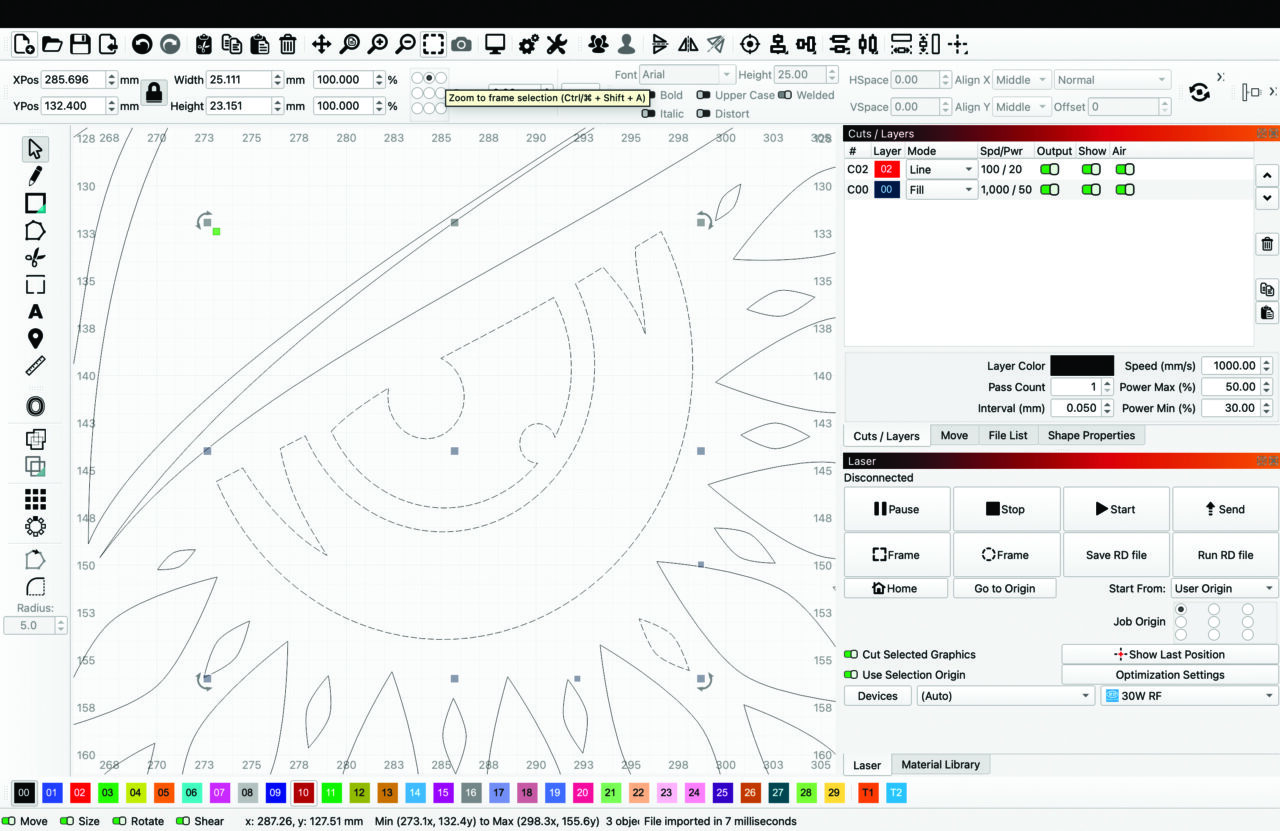
    Zoom To Frame Selection

    Zooming in and out while designing is essential, and you can always zoom with your keyboard’s plus or minus keys, your mouse’s scroll wheel, or two-finger dragging on a trackpad.

    You can also use two options to jump to what you need more quickly in both LightBurn and MillMage. Zoom to Frame Selection (Ctrl+Shift+A/Cmd+Shift+A) to jump to a view of just the graphics in your selection, and Zoom to Page (Ctrl+0/Cmd+0) to bring your entire Workspace grid into view.

    Single-Press Keyboard Shortcuts

    Every tool in LightBurn and MillMage is available in a toolbar or menu, and most have hot keys as well. But for some of the most common design and layout features, handy one-key shortcuts are also available.

    Here’s the one I use frequently: press P to center all objects in your selection in the Workspace.

    Several other hot keys align objects relative to one another’s edges or centers in a single press:

    • Align Left (L)
    • Align Right (R) 
    • Align Top (T) 
    • Align Bottom (B)
    • Align Vertical Centers (C)
    • Align Horizontal Centers (E)

    You can also rotate objects 90 degrees clockwise with the period key and 90 degrees counterclockwise with the comma key or nudge them in 5-millimeter increments using the left-, right-, up-, and down-arrow keys. The increments for nudge movement are all adjustable in your personal preferences (Edit > Settings).

     One note: These shortcuts only work when the Workspace is in focus. That’s a technical way of saying when the last place you clicked is somewhere within your design grid, rather than an auxiliary window or toolbar.

    Hotkey Editor

    Hot key Editor

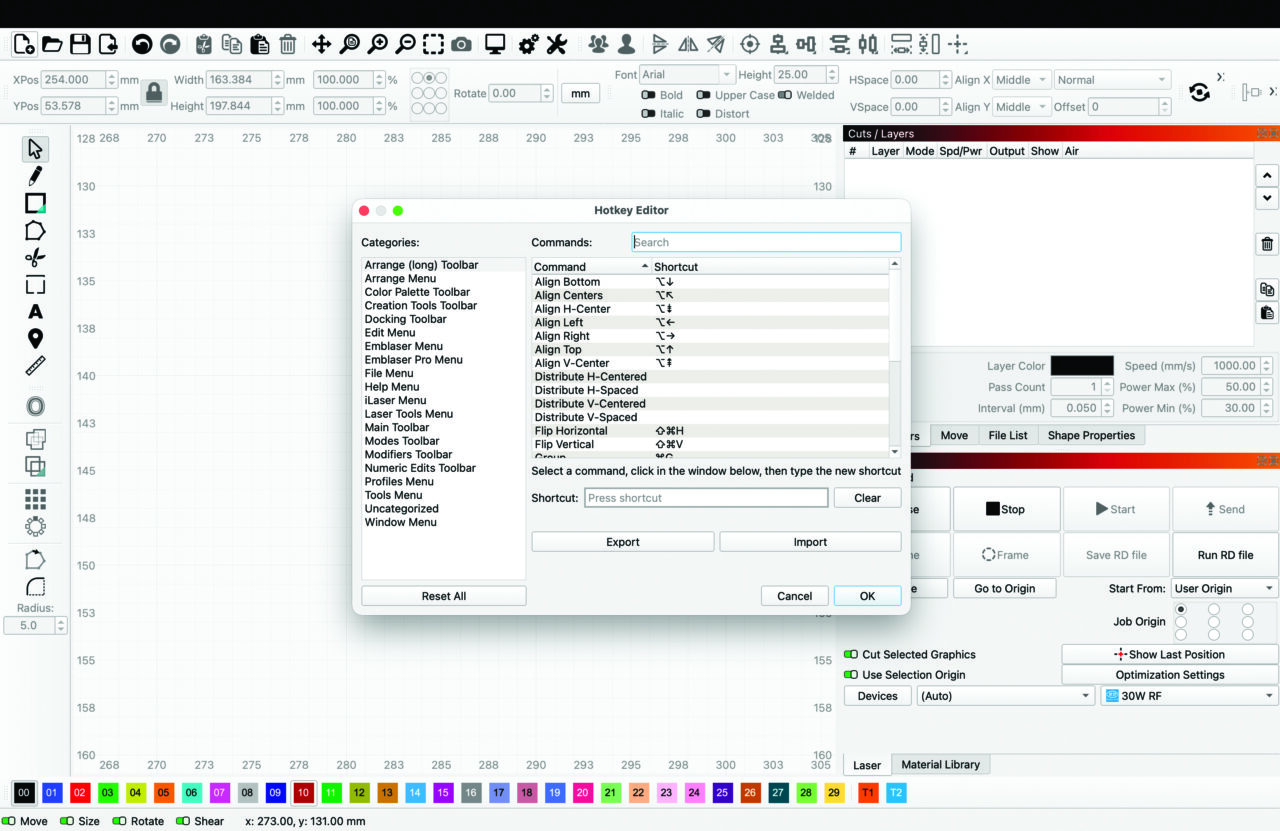
    If you’ve got a handful of tools you use all the time, you can customize their hot keys to whatever shortcuts are most convenient to you. This customization is also a great option if there are certain tools you’re used to in other software and want to align your LightBurn/MillMage Hotkey Editor with your muscle memory.

    Go to File > Preferences > Edit Hotkeys to open the editor. Then select a tool and press the keys you want to set as a new shortcut. The editor will warn you if your chosen hot key is already in use; in that case, you can select another or clear the hot key from the existing tool.

    You can even export and import these custom hotkeys to ensure they’re synced across multiple installations. This is especially helpful if you’re upgrading or adding new equipment to your existing lineup. 

    Workspace Customization

    The LightBurn/MillMage Workspace is highly customizable. Enable or disable any window or toolbar by going to the Window Menu and clicking an entry in the list. Any Window or toolbar with a check mark next to its name is enabled; those without are turned off.

     You can also move windows and toolbars around, either undocking them to float independently or redocking them somewhere along the left, right, top, or bottom of your screen. The exact docking locations depend on your display size and the size of your device, but the possibilities are nearly endless.

    You can also resize most windows and toolbars by hovering over their tops, bottoms, or sides until you see a two-arrow icon appear, then click and drag. Note that some windows have a minimum size you can shrink them to, and that can also affect your ability to resize adjacent windows.

    If you ever decide you’ve changed too much, go to Window > Reset to Default Layout to return to the original appearance from when you first installed.

    Dark Mode

    Dark Mode helps give your eyes a rest if you’re in front of the screen for a long time. There are two ways to enable this feature in your preferences (Edit > Settings) under the Display tab.

    The default Application Theme is System Theme, which matches your default operating system preferences. For example, if your operating system is set to dark mode, LightBurn and MillMage will automatically be set to that mode as well.

    If your system is set to light mode, you can override it by selecting Classic Dark (or override a system’s dark theme by selecting Classic Light). 

    Note that any change you make to the Application Theme requires a restart to take effect.

    For more information on LightBurn and MillMage workflow-optimization tips, visit our documentation at Docs.LightBurnSoftware.com and Docs.MillMageSoftware.com. 

  • Blazering: How to Combine Laser Engraving and Sandblasting for an Innovative, Eye-Catching Effect

    Mixed-media personalization can be an excellent way to expand a retailer’s offerings, provided they start with the right equipment and expertise. Blazering, which combines the benefits of laser engraving and sandblasting, offers retailers a hybrid option that delivers precision and depth for highly detailed products. 

    Darin Jones, technical training sales specialist at IKONICS Imaging and a blazering advocate, recently shared insights on how retailers can approach this market and what they need to know before jumping in. 

    Blazering Defined: Clean and Detailed 

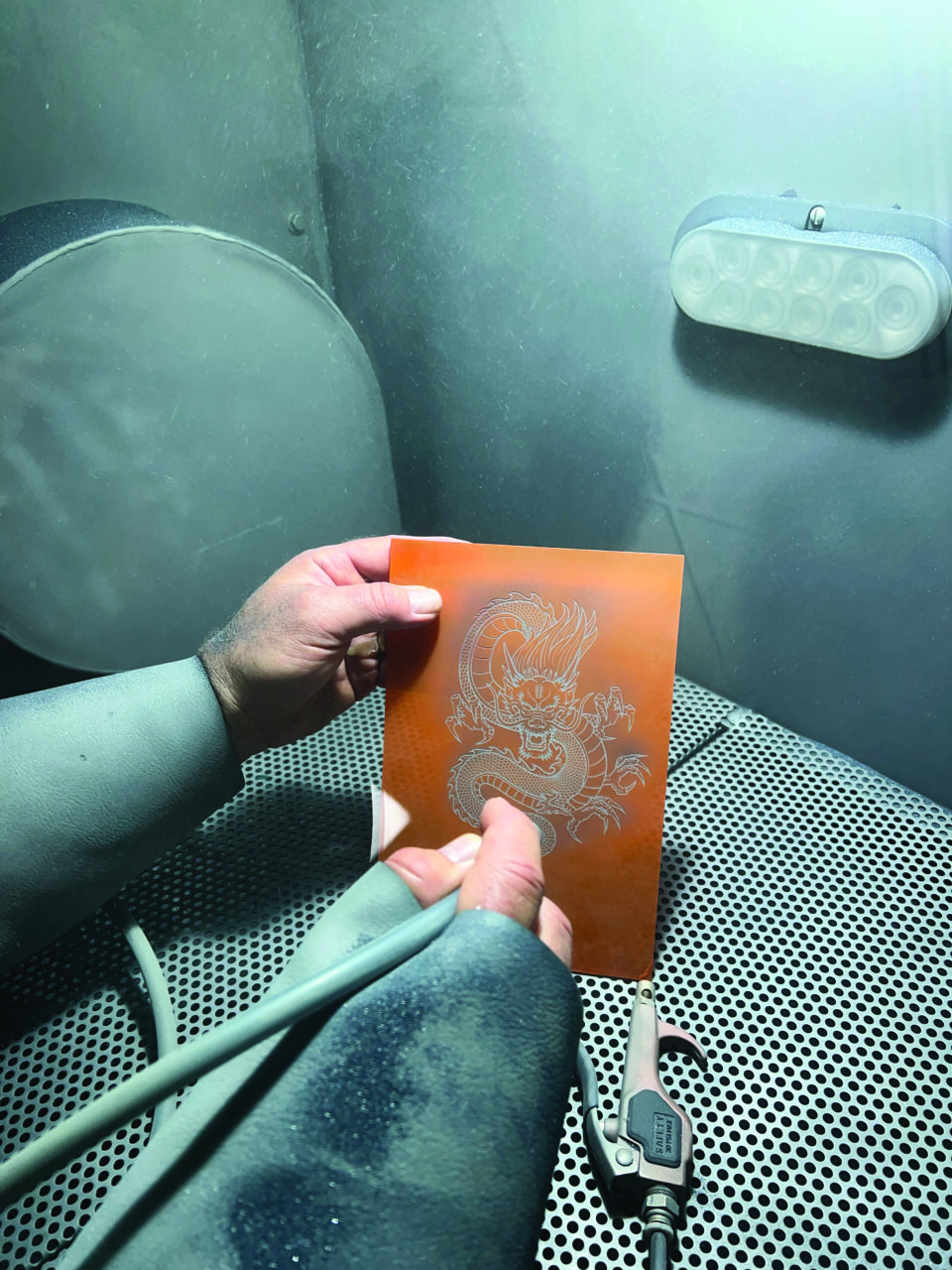
    By combining elements of sandblasting and laser engraving, blazering can create clean, detailed, and deeply etched designs on various substrates. Typical laser engraving produces a shallow burn; sandcarving requires manual stenciling. Blazering, meanwhile, uses a laser to burn the image into the mask on the item before sandblasting for enhanced results.

    Ideal Blazering Substrates and Applications

    Jones says it’s important to determine if the substrate is ideal for blazering before starting. 

    “My rule of thumb is if the item is breakable or chippable (like glass, crystal, or porcelain), can’t be lasered, and/or is very fragile, then I will suggest sandcarving for the deep etch,” he stresses. 

    If the item is scratchable and not breakable, like acrylic and precious metals, Jones recommends laser engraving as an alternative, as the look would be the same.

    Jones adds that the selection method will vary based on the customer’s order.  

    “Lasering will burn, and sandcarving is low-frictional heat,” Jones adds, pointing to wood as an example substrate. “On light wood, laser creates a dark burn, and on the same wood, sand carving creates a deep but lighter image that may require a wood stain.” 

    Step-by-Step Workflow

    Jones says the process starts with artwork: Create a black-and-white design where black areas will be etched. After that, apply a specialized mask, like Blazer Orange, to the substrate. Apply the blastable laser mask evenly and stretch it over curves to avoid bubbles.

    The remaining steps are as follows: 

    Place the item in a laser engraver at tested settings (e.g., high power/slower speed for CO2 lasers).  Jones suggests burning through at least 80% of the mask in the laser engraver, and the sandcarving machine will remove the remaining 20%.  

    “This saves time,” Jones adds. “Testing squares is the most common test; 100% power, 80% power, and so on.” 

    After finishing engraving, sandblast the product at approximately 40 psi with a nozzle distance of 4 to 6 inches. “We recommend silicon carbide and the sizes between 150 and 220 mesh,” Jones says. 

    Remove the mask and, if necessary, test additional iterations by laser engraving first, then blasting to create several samples and dial in the best settings for a repeatable process. 

    Key Points to Remember 

    The core process of blazering is straightforward, but Jones urges retailers to pay close attention to settings, speed, and mask application for the cleanest results. 

    “You can see the best of both worlds,” Jones adds. “First, you laser engrave the item, and if you are not satisfied with the appearance or depth, then you can put the item in the sandcarver to get another result.” 

    Additionally, Jones recommends a consistent etching speed of approximately 1 square inch per second for sandblasting, using pressure pots to ensure steady flow.

    Leveling Up 

    Once retailers are comfortable with basic blazering, they can step up their technique to more eye-catching decoration. 

    “Practice sandcarving on a blank piece of glass to see the color tones, different angle looks, and close and further away nozzle passes so you can see what your sand carver can do for multilevel and shading,” Jones suggests. “Outlines of the image are good for multilevel carvings.  For halftones, use high-resolution artwork so the dots remain sharp and round, which is ideal for sand carving.” 

    For color fill, Jones recommends images with thick outlines, which create a deep pool for paint to settle into. 

    Multilevel carving and shading create opportunities for products like drinkware, awards, and gifts, where a 3D-etched look differentiates from traditional flat engraving.

    Business Value and Education

    Ultimately, blazering can boost retailers’ margins by leveraging uniquely deep etches. Products made of hard glass or stone, for everything from premium drinkware to corporate gifts, often have a higher perceived value, allowing retailers to charge more. Plus, the detailed etching is perfect for online stores since the multi-angle 3D visuals will still look equally striking on a website as they do in person, he adds. 

    Going beyond a basic getting-started tutorial, Jones recommends that retailers interested in blazering participate in existing educational opportunities. This includes hands-on classes at the APA Expo and workshops hosted by GS2 Awards, a Trotec dealer. Trotec Laser also hosts blazering events at their locations nationwide, which GS2 and IKONICS participate in.

    “In today’s market, saturation is real, so offering products that other companies may not be aware of or ignore is an opportunity for a retailer to grow with blazering,” states Jones.