
Looking for a new read that may give you some tips for business and life? A few APA members share books that inspired.
By Shon Roti
AI
impacts nearly everything we consume and create, and there are no signs of it slowing down. Graphic design and design software are increasingly shaped by AI-driven tools.
My own resistance to using AI in daily design work has gradually faded as I have become more aware of its practical benefits and time-saving capabilities, while also coming to terms with my initial concerns about what it might mean for my relevance as a marketing professional.
AI in Photoshop
Currently, there are more than 25 AI-powered features and tools in Adobe Photoshop, plus at least 20 machine-learning-assisted functions. Their purposes include adding or extending scenery; removing, adding, or selecting people or objects; retouching skin blemishes; restoring photos; and adjusting lighting, to name a few.
Here’s a look at a few AI features I often use to save time.
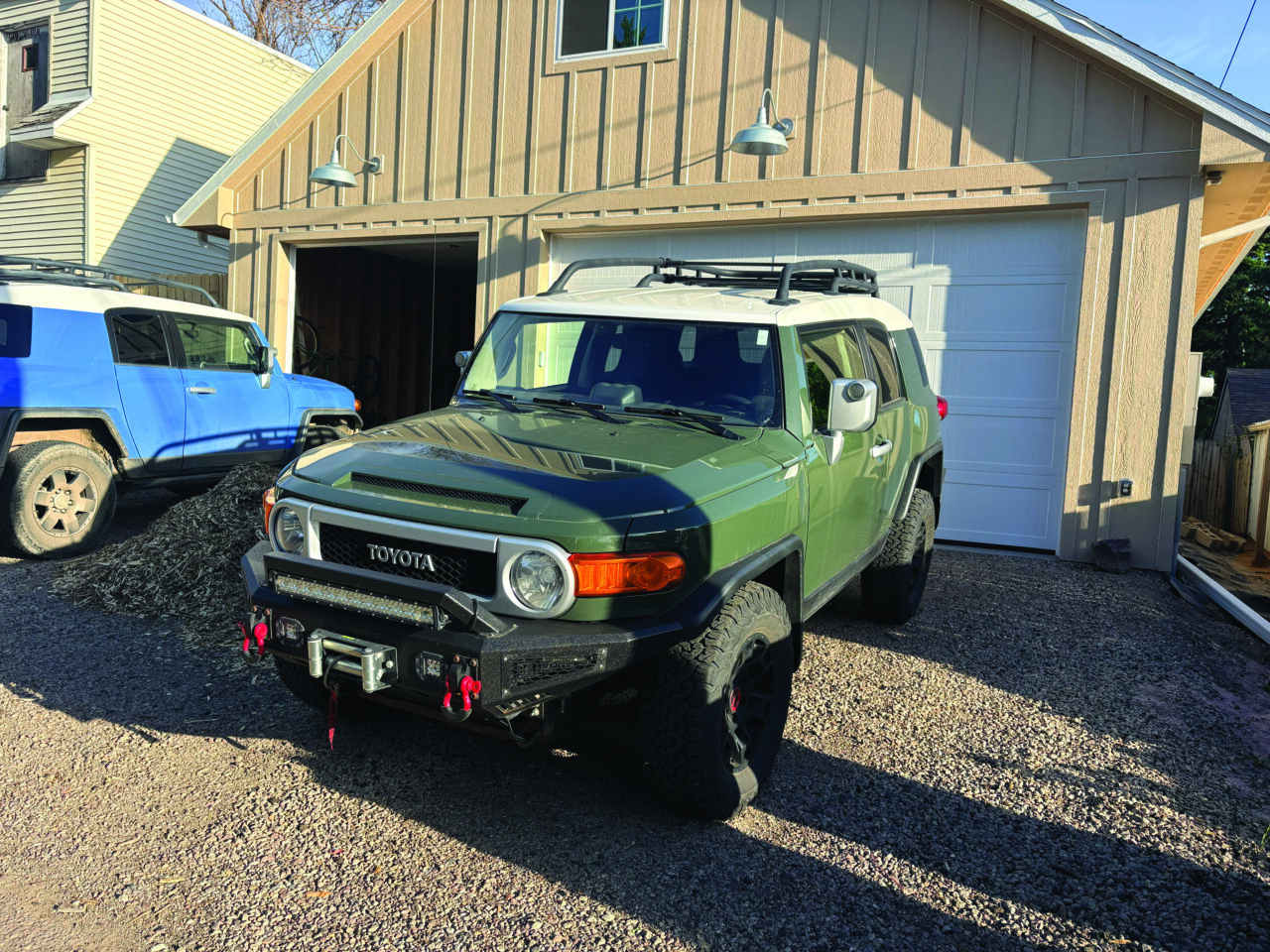
Figures A and B: Two photos taken on different days with very different lighting situations: midafternoon and cloudy for the red Nova wagon and sunny late afternoon for my green FJ Cruiser.
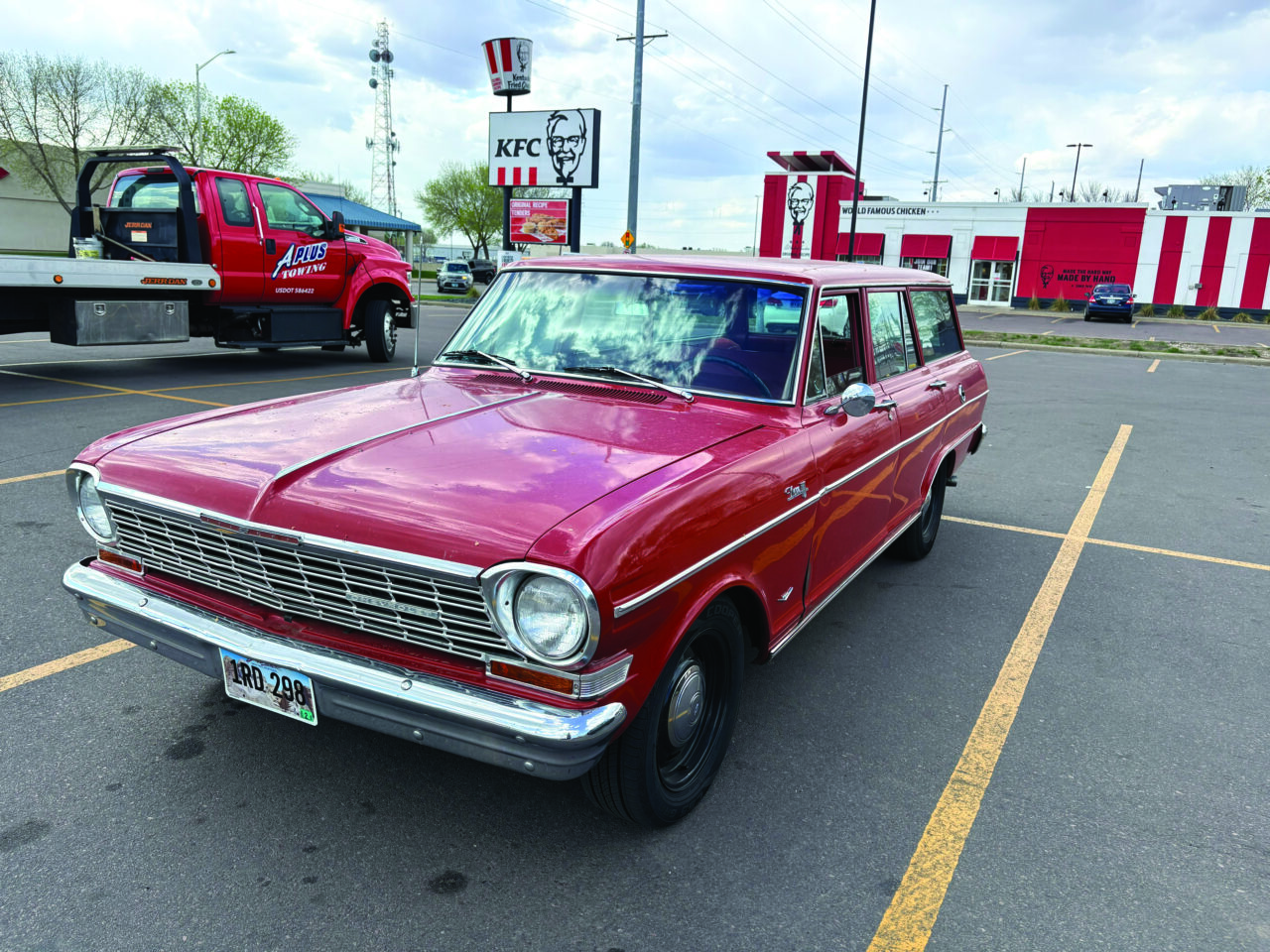
Figure C: A composite created using three different AI tools and surprisingly few steps to complete this convincing effect.

Select Subject and Generative Fill
Access the Select Subject option in the Contextual Task Bar by right-clicking in the empty workspace (not the image) and selecting Show Contextual Task Bar (figure D).
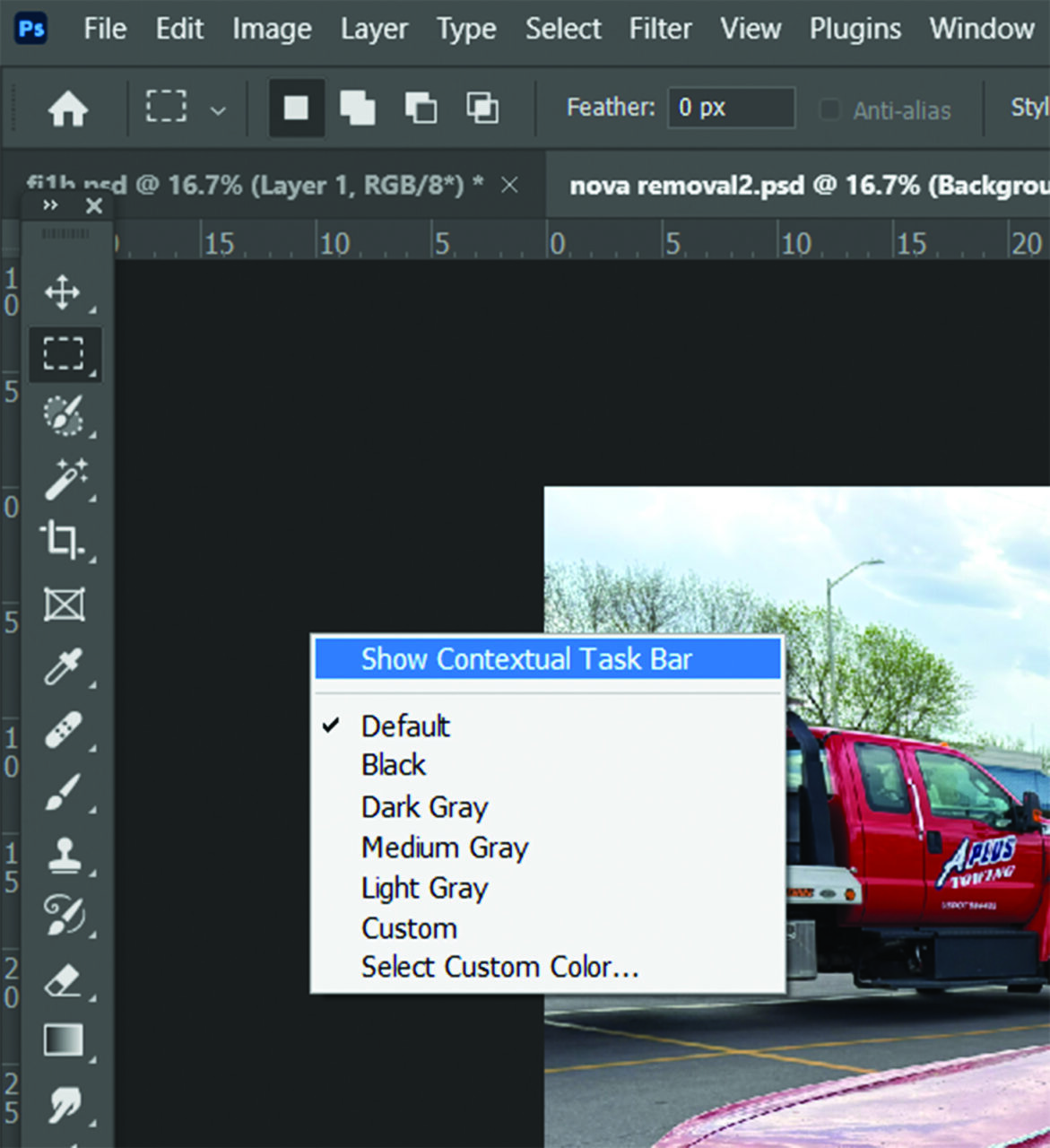
To select the most prominent object in the photo, use Select Subject. Depending on the computer’s processing power, this could take as little as five seconds and often does a better job than I could have done manually with the Polygonal Lasso Tool.
Next, in the same Contextual Task Bar, the Generative Fill option appears. I selected it. At that point, I could have chosen to fill the space with whatever I wanted: a fruit basket, twelve monkeys, or another random vehicle. But in this case, I entered the prompt, “Remove the car.”
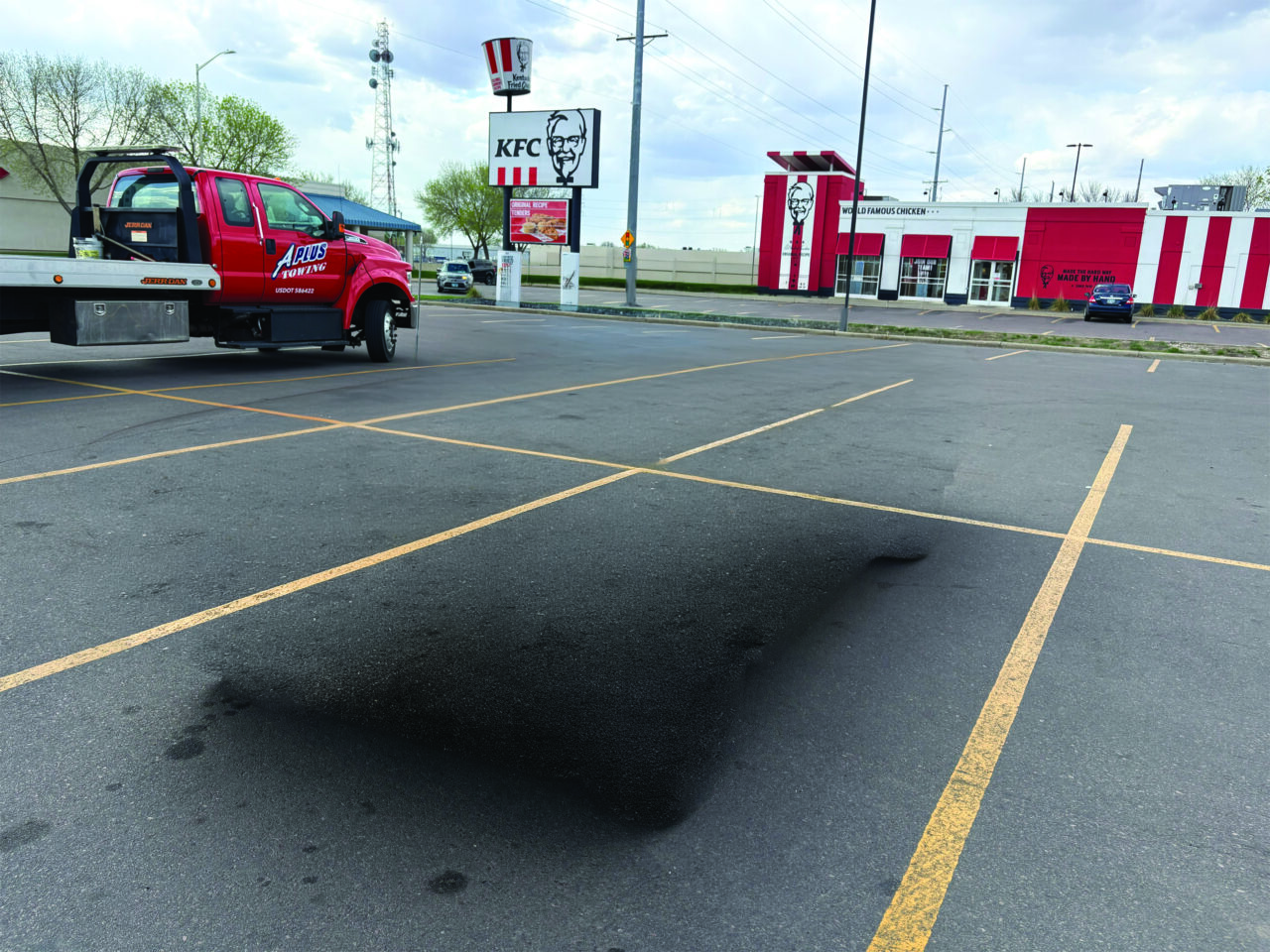
Photoshop completed the task in seconds, leaving an empty space in the parking lot (figure E). It was not perfect; there was a bit of residual shadow left behind from the Nova, but it was still pretty impressive.
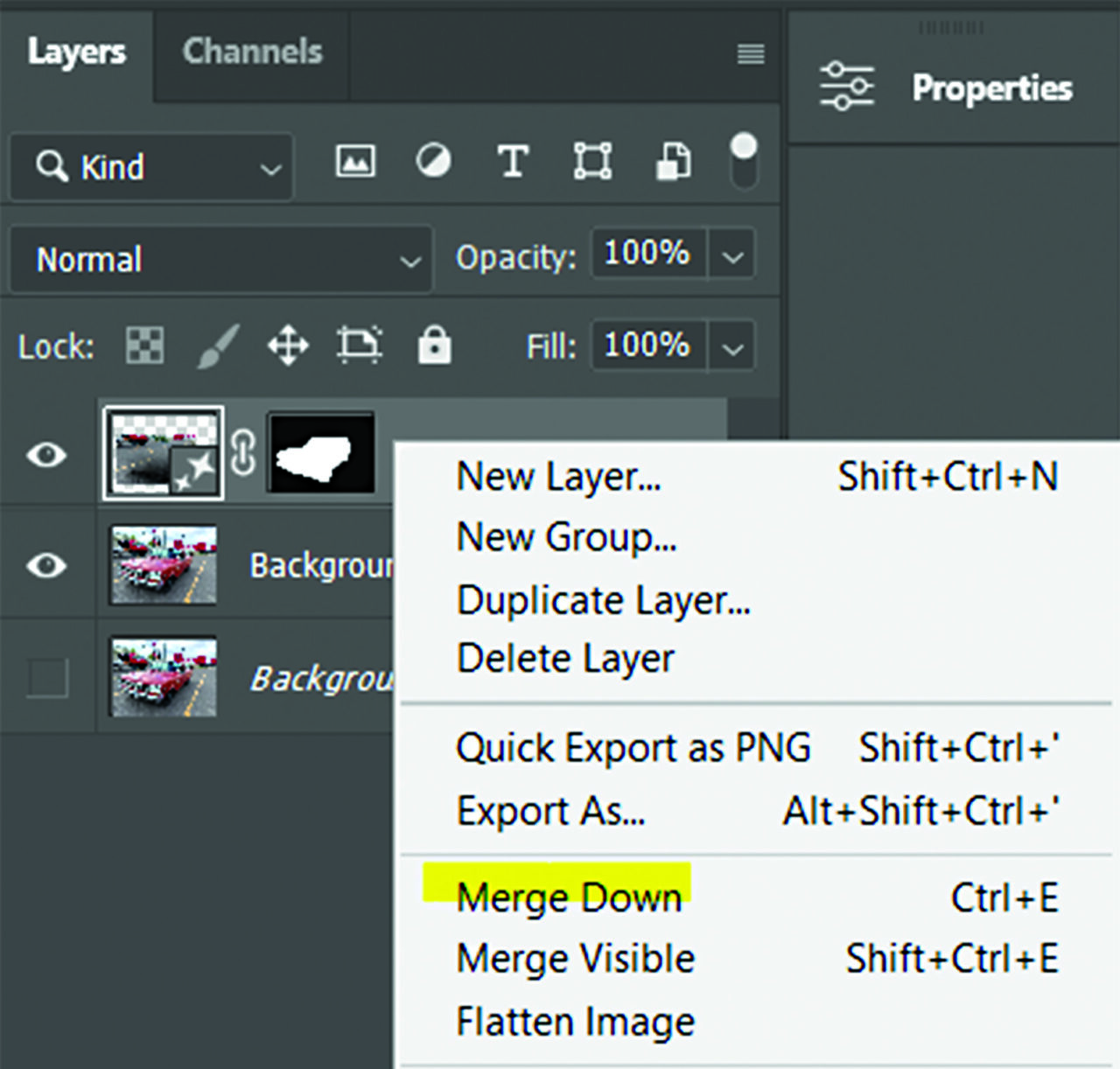
I then right-clicked the newly created and merged empty-parking-lot layer and merged it down into the layer below (figure F).
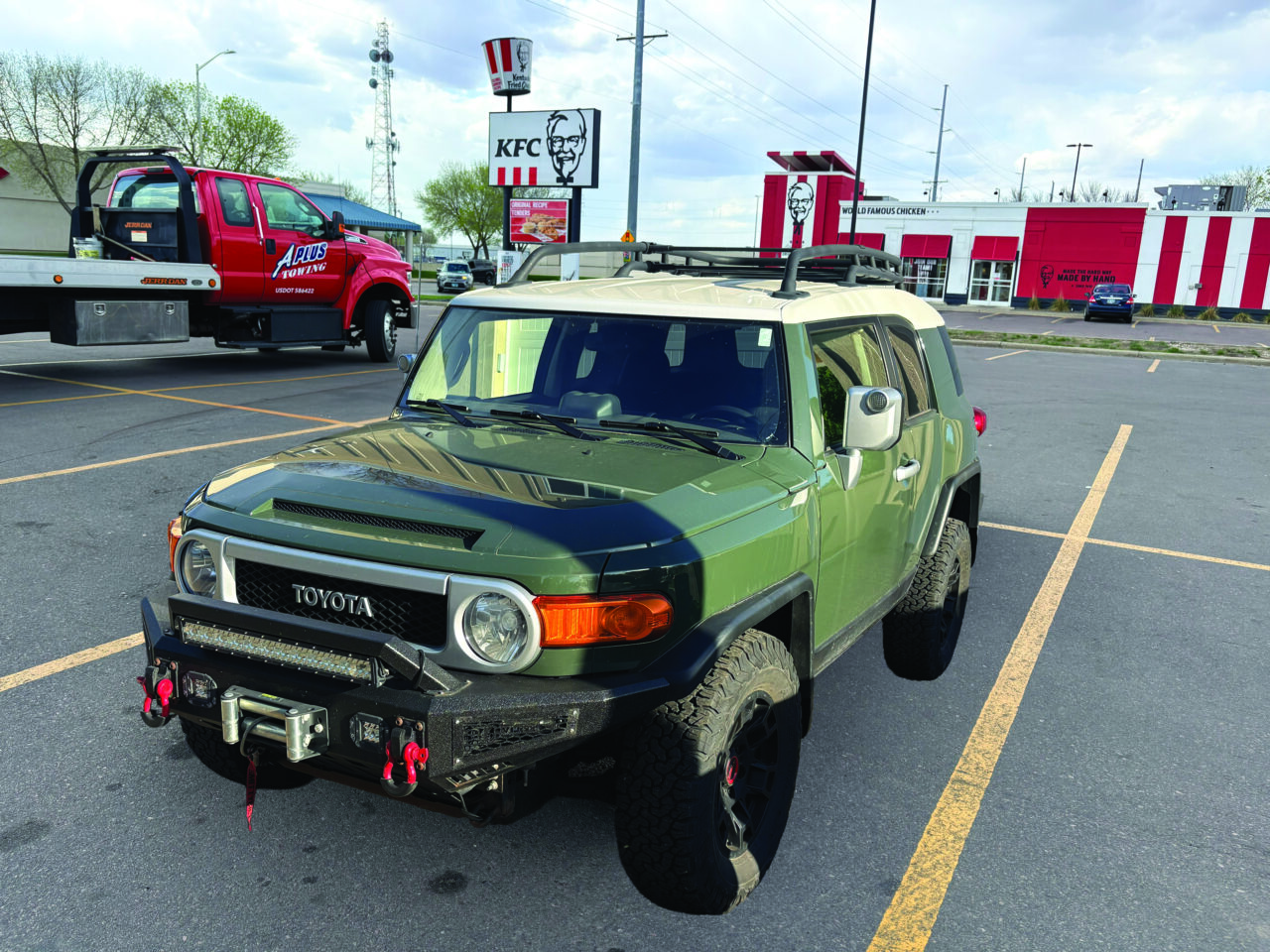
Next, I opened the photo of my FJ Cruiser, used the same AI selection option, copied it (Ctrl+C), and pasted it (Ctrl+V) into the parking lot file, above the layer containing the empty parking lot (figure G). The FJ and the background looked about as natural together as a fish on a bicycle.
Harmonize Layer
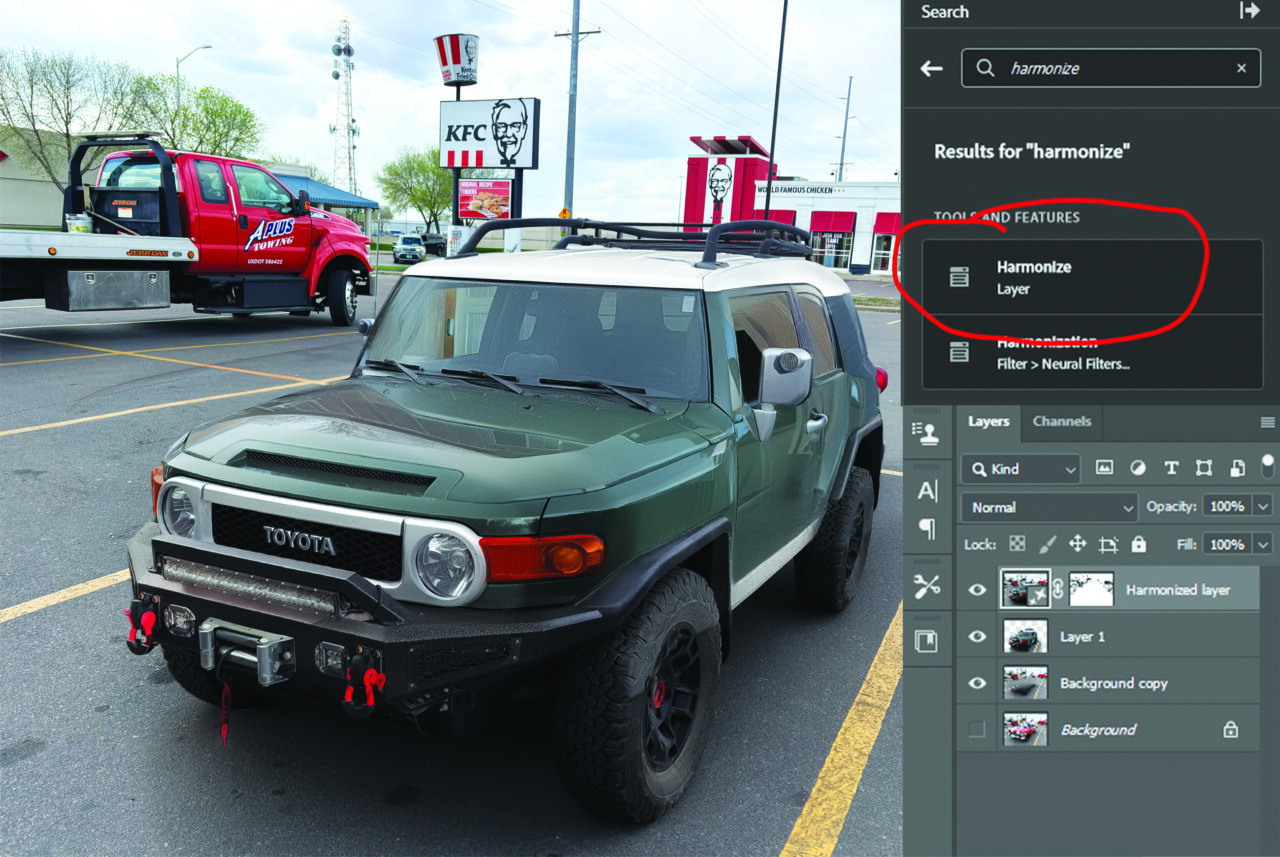
You’ll locate this feature with the search bar in the upper-right corner of the workspace. Type “harmonize” into the search field, and the Harmonize Layer option should appear near the top of the results.
After confirming I had selected the FJ Cruiser layer, I chose the Harmonize Layer option (figure H). This process took a bit longer, but it adjusted the lighting to match the cloudy conditions of the image below. However, it also created a new shadow under the FJ and partially removed the shadow from the hood. It also gave me two other renderings to choose from. I chose the first option. Then I merged that layer into the one beneath (the parking lot). I copied the new image, pasted it into a new document, and saved it; the illusion was complete.
Of course, I would be remiss if I didn’t also show how these new AI features can be applied in a real-world situation, like the T-shirt design in figure I.
As with most emerging technologies, some AI design tools will become more relevant than others, depending on the type of work or the project at hand.
Full disclosure, AI was used to assist with definitions of these AI features, improve spelling and grammar, and generally polish my sentence structure. The photo of the lady in the white T-shirt was found on Pixabay.com and is an AI-generated image. However, the design and the article itself still come from human skills, honed over time.

Like everything in life, there are few guarantees, but one of them is change. I am not ready for retirement yet, so I am adapting and learning at least until the robots take over.